Connections
Total stations and digital levels usually support a serial connection with RS232. Some instruments come with additional connection methods, like bluetooth as well.
Serial Line
The RS232 serial line is the main method of connection. The relevant main
primitive is the SerialConnection class,
that acts as a wrapper around a Serial object that
implements the actual low level serial communication.
1 2 3 4 5 6 7 8 | |
Caution
It is strongly recommended to set a timeout on the connection. Without
a timeout set, the connection may end up in a perpetual waiting state
if the instrument becomes unresponsive. A too small value however might
result in premature timeout issues when using slow commands (e.g.
motorized functions, measurements).
The SerialConnection can also be used as a
context manager, that automatically closes the serial port when the context
is left.
1 2 3 4 5 6 7 | |
To make the connection creation simpler, a utility function is also included
that can be used similarly to the open() function of the standard
library.
1 2 3 4 5 | |
If a time consuming request has to be executed (that might exceed the normal connection timeout), it is possible to run it with a temporary override.
1 2 3 4 5 6 7 8 9 10 11 12 | |
Bluetooth
Newer instruments (particularly robotic total stations) might come with built-in or attachable bluetooth connection capabilities (e.g. Leica TS15 with radio handle). These instruments communicate over Serial Port Profile Bluetooth Classic (SPP), that emulates a direct line serial connection.
Note
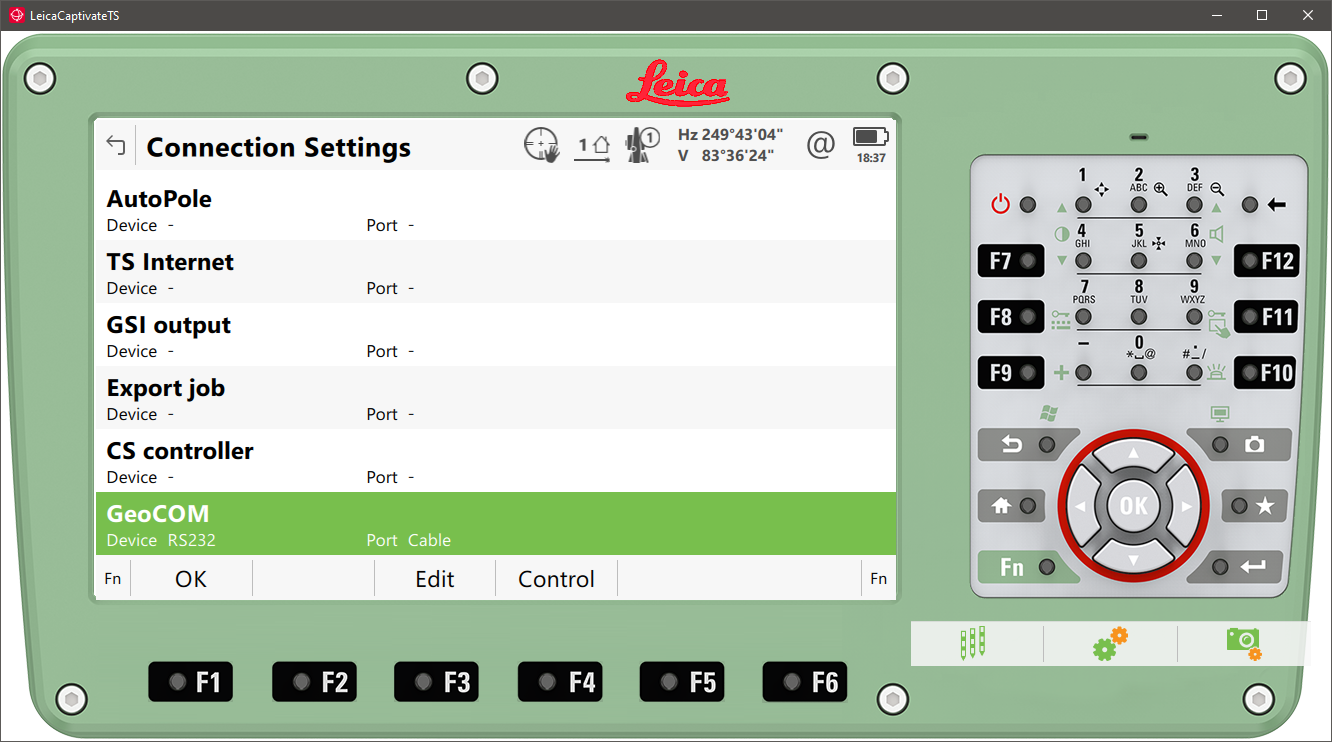
In case of Leica instruments and GeoCOM, the GeoCOM interface on the instrument might have to be manually switched to the bluetooth device, before initiating a connection. Make sure to sync the port parameters (e.g. speed, parity) between the instrument and the computer!
To initiate a connection like this, the instrument first has to be paired to the controlling computer, and the bluetooth address of the instrument must be bound to an RFCOMM port as well.
Tip
Make sure, that the Bluetooth modem is active on the instrument and it is discoverable!
Windows
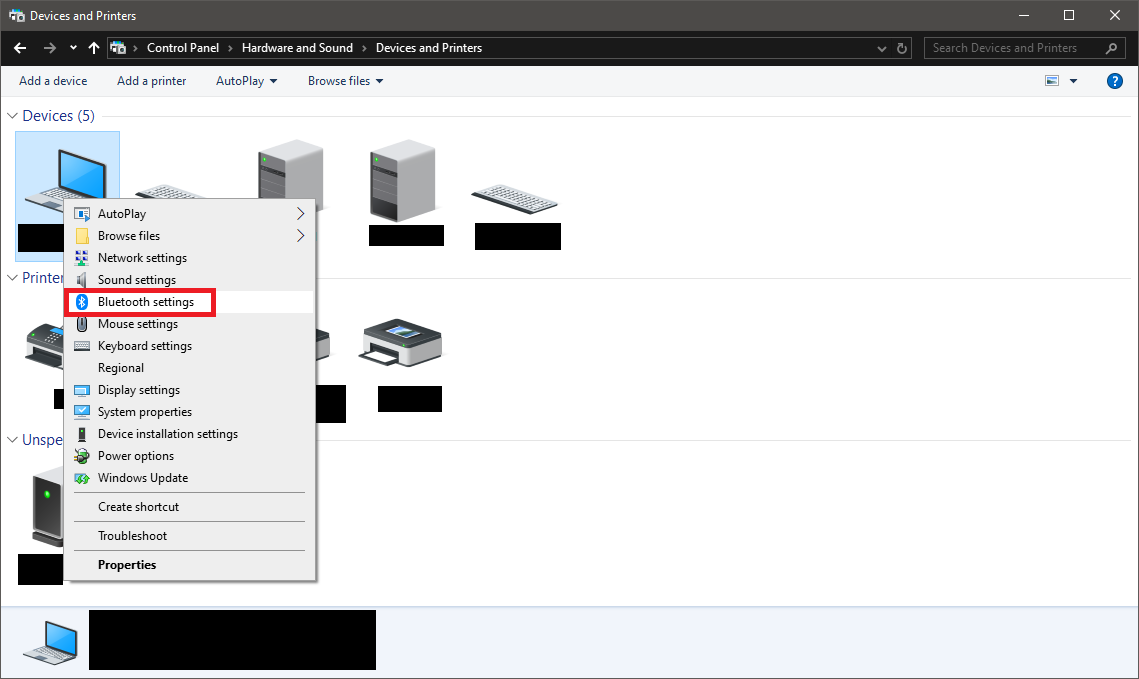
On windows machines the process is relatively straight forward. New SPP devices can be added through the “Devices and Printers” page of the Control Panel.
Right-click on local computer and select the Bluetooth settings
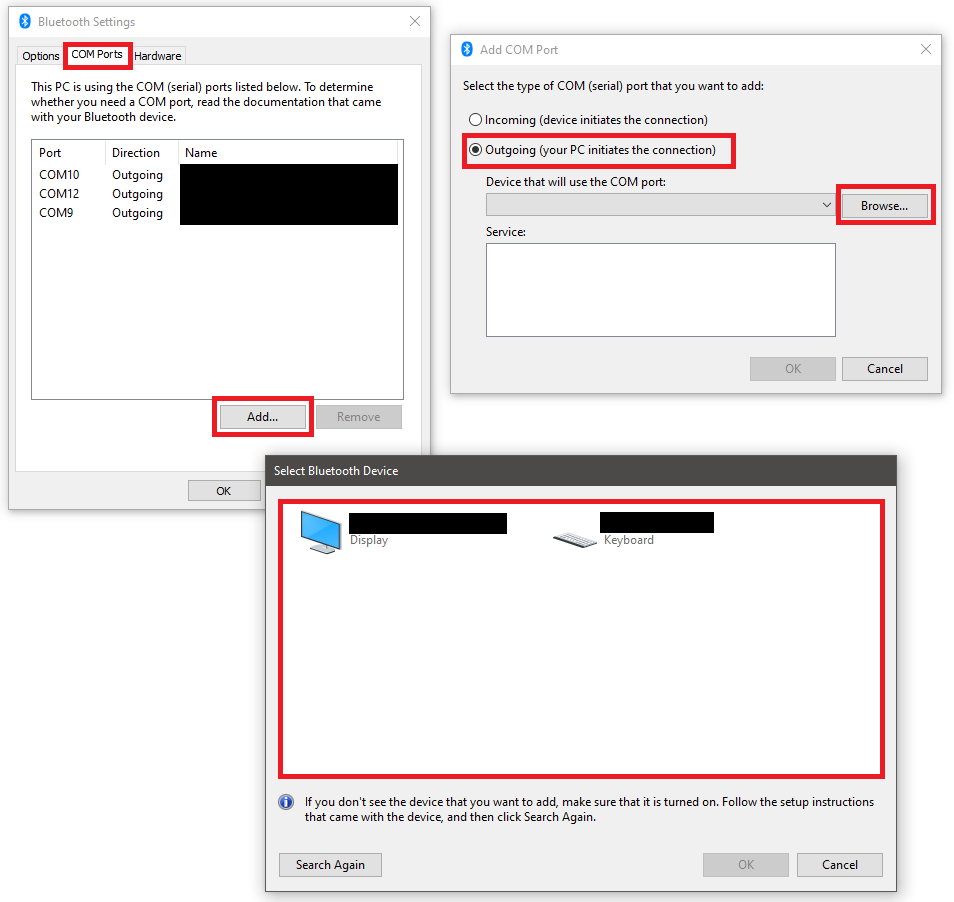
Navigate to the COM Ports tab
Click on Add
Select the Outgoing connection option and click Browse
Wait for the device to show up in the discovery window, then press OK
Click OK in all the windows
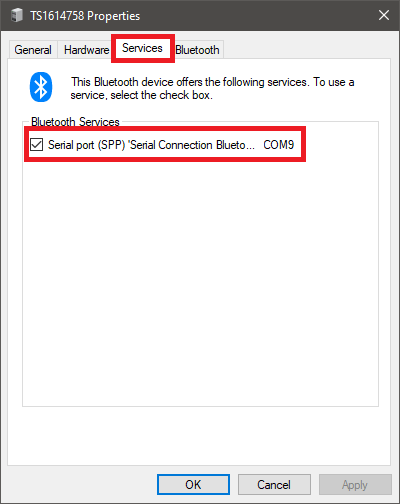
If the process is successful, a new device will be added to the list of devices. To double check, that the COM port binding was successful, open the properties of the new device, and check, that the SPP service is active and what port was assigned to it.
The actual device pairing will be initiated when the first actual connection
is attempted. The pairing code is usually 0000 or 1234.
Linux
Note
The Linux process might vary between systems and distributions. Here the steps for setting up a Raspberry Pi will be given.
To add an SPP Bluetooth connection, the Bluetooth service has to be set to compatibility mode, and the SPP service registered. This can be done by updating the config of the bluez service.
sudo nano /etc/systemd/system/dbus-org.bluez.service
Two lines have to be modified/added in the config:
ExecStart=/usr/lib/bluetooth/bluetoothd -C
ExecStartPost=/usr/bin/sdptool add SP
Caution
On some devices/distributions of the Raspberry Pi OS the Bluetooth
service executable might be in /usr/libexec/... instead of
/usr/lib/.... Make sure to specify the correct path!
After the modifications the Bluetooth service has to be restarted (the cleanest solution is to simply restart the whole Raspberry Pi).
Once restarted, check, that the service started without issues:
service bluetooth status
If the service started without errors, the pairing and binding can be done.
Start the Bluetooth utility:
bluetoothctl
Make sure, that the device modem is powered on, the agent is active and start scanning:
power on
agent on
scan on
Wait for the device to appear (Bluetooth MAC address and device name), then turn off the scanning:
scan off
Once the MAC address is known, the device can be paired and set to trusted
(the pairing code is usually 0000 or 1234):
pair <MAC address>
0000
trust <MAC address>
After the pairing is successful, the devices can be checked:
paired-devices
If everything is done, the utility can be closed:
quit
The final step is creating the RFCOMM binding, that allows to access the SPP service connection:
sudo rfcomm bind hci0 <MAC address>
The existing RFCOMM bindings can be checked if needed:
rfcomm
If the whole process was successful, the device will be accessible on the
/dev/rfcomm0 port, and can be used as any direct line serial connection.
1 2 3 4 5 | |
Warning
The RFCOMM bindings on Linux only exist while the system is running. They have to be recreated after every restart either manually, or with a startup script.
Internet
The newest instruments (in addition to Bluetooth) also come with WLAN support. This enables connections through TCP/IP.
Note
In case of Leica instruments and GeoCOM, the GeoCOM interface on the instrument might have to be manually switched to WLAN mode before initiating a connection.
To initiate a connection through internet sockets, the instrument and the controlling computer must be connected to the same WLAN.
Tip
The IP address and TCP port number of the instrument can be checked in the control menu of the connection settings on the instrument.
1 2 3 4 5 | |
Simulators
For testing and development purposes it is possible to make a connection to the Leica Captivate TS simulator (and possibly other older official instrument simulators). The simulators are available with an existing Captivate license, or individual request from Leica or a Leica dealer.
Tip
The simulator can be used to generate test data, or test a range of commands. It responds to GeoCOM requests with some exceptions.
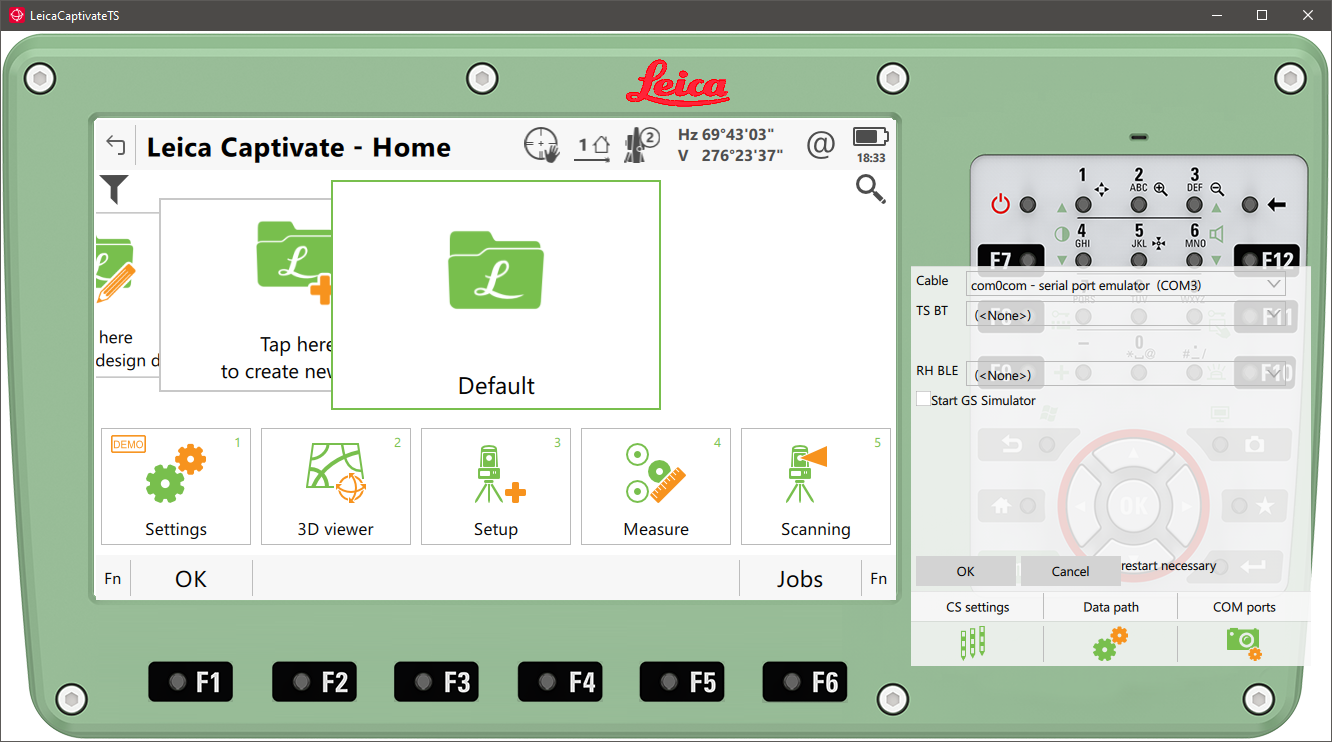
To communicate with the simulator, a virtual serial port pair needs to be set up on the computer. An open source solution is to use com0com.
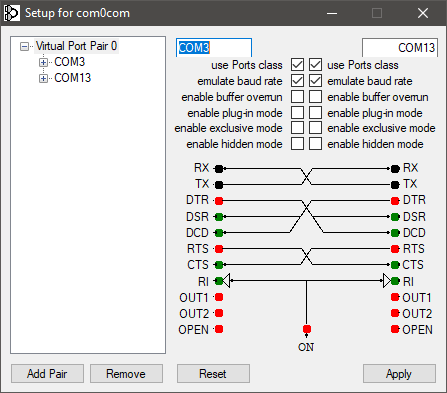
It installs virtual serial port emulator drivers to simulate connections. The communication is channeled through the presistent virtual devices.

In the settings of the simulator, the cable connection can be set to one end of the virtual port pair (COM3 in this example), the other end can be used to connect to the simulator (COM13 here).
Tip
Older instrument simulators are hardwired to use COM1, COM2 and COM3 for cable, radio and bluetooth connections in this order. To connect to such a simulator, the virtual port pair should be set up between COM1 and a suitable second port COM4 or above.
The interface settings have to be set accordingly in the simulator itself, just like on a real instrument.
Warning
While purely software related GeoCOM commands are executed fine, the simulator might freeze up (serial communication wise) when trying to call closely hardware related functions (e.g. motorization). In these cases the GeoCOM commands start to time out. To solve it, the simulator has to be restarted.
Realiability
Some connections might not be as reliable as needed for stable operation. Interference can cause messages to get corrupted, or not arrive at all at the destination. For stable operation there must be a way to detect a missing or corrupt message.
The GeoCOM protocol supports two mechanisms to detect faults in communication. The GSI Online system has no such support.
Transactions
The GeoCOM request and response messages can optionally have a transaction ID field.
%R1Q,0:
%R1P,0,0:0
%R1Q,0,1:
%R1P,0,1:0
When the ID is incremented for each request-response exchange, it can be used to detect if the two ques get misaligned due to a missing response. This can happen if the connection times out, but the instrument still sends a reply after the timeout period. This would leave an unread message in the receiver buffer, which would get confused with the response to the next request.
%R1Q,0,3:
%R1P,0,2:0
Transaction IDs must be in the positive range of a 16 bit signed integer (0 - 32767). After 32767, the ID must roll back to 0 (otherwise the instrument will respond with overflowed IDs -32768, -32767, etc.).
Note
Transactions are automatically handled by GeoComPy. If a transaction mismatch is detected, the appropriate response code indicating the fault is returned.
Checksums
While transactions can be used to detect out of sync request-response ques, they cannot detect partially corrupted messages (a corruption that leaves the message syntactically correct, but with altered meaning).
To detect corrupted messages, GeoCOM requests and responses have an optional checksum field. The checksum is calculated with the CRC-16/ARC method.
When sending a request, the checksum has to be first calculated for the message without the checksum field, then the checksum must be inserted before the message is sent.
with open_serial("COM1") as com:
    cmd = "%R1Q,0,11:"
    checksum = crc16(cmd)
    cmd = f"%R1Q,0,11,{checksum}:"
    com.send(cmd)
After receiving the response, the checksum must be first extracted from the message, then recomputed from the response without the checksum. If the received checksum and the computed checksum are equal, the message is intact. Otherwise an error occured during transmission.
with open_serial("COM1") as com:
    resp = com.receive() # example: resp = "%R1P,0,11,22896:0"
    parts = resp.split(":")
    header = parts[0].split(",")
    checksum_rec = int(header[3])
    checksum_calc = crc16(",".join(header[:3]) + ":" + parts[1])
    if checksum_rec != checksum_calc:
        raise ValueError("Checksum mismatch")
Tip
Checksums are supported by GeoComPy, but the feature is by default disabled as it adds some overhead to the communication that can cause latency in high speed scenarios.
Checksum calculation can be enabled on each GeoCom instance separately.
with open_serial("COM1") as com:
    tps = GeoCom(com, checksum=True)